
Developer Mode
Flow-Like starts in a simplified view. Building tools stay hidden until you switch on Developer Mode, so you can use apps, browse the store, and manage your files without the full builder surface in the way.
If a building tool is missing, check Developer Mode and your App permissions. A platform or role restriction can still hide or disable a feature after you enable the switch.
What Developer Mode unlocks
Section titled “What Developer Mode unlocks”With Developer Mode off, Flow-Like hides:
- Explore Models in the sidebar (models remain available through Settings → AI Models).
- Packages in the sidebar: the WASM node packages you build (Mine) and the ones you use (Library)
- Node packages in Explore, which then shows apps only
- The App’s Flows, Events, Templates, Widgets, Data Studio, User Storage, Packages, Suites, Roles, Analytics, Endpoints, and Publication sections
- Active Sinks, Board Statistics, and the API Token page in settings and the account menu
- Store listing, compliance, and release panels in the project dashboard
With Developer Mode on, these building tools appear where the App, platform, and your permissions allow them. Dashboard, Setup, Appearance, Devices, Storage, Offline access, Team, Monetization, and Audit trail do not require Developer Mode, though their other access requirements still apply.
Hiding is purely visual: direct links to these pages keep working, and your roles and permissions are not affected.
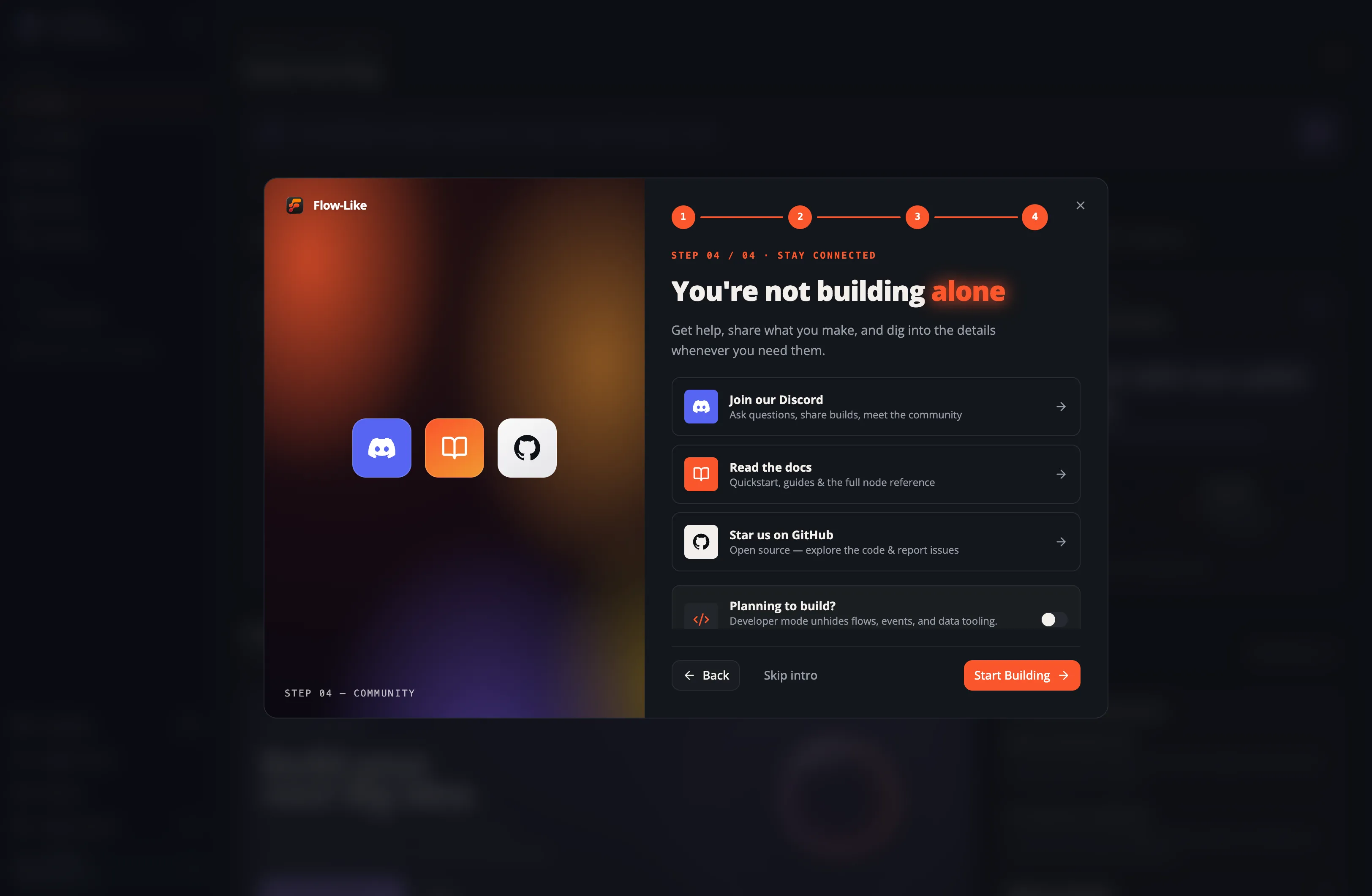
Turn it on in the welcome tour
Section titled “Turn it on in the welcome tour”The last step of the welcome tour asks whether you plan to build. Flip the switch there and Flow-Like starts in the full builder view right away:
Turn it on in Settings
Section titled “Turn it on in Settings”You can change your mind anytime. Open Settings from the sidebar footer and scroll to the Developer section:
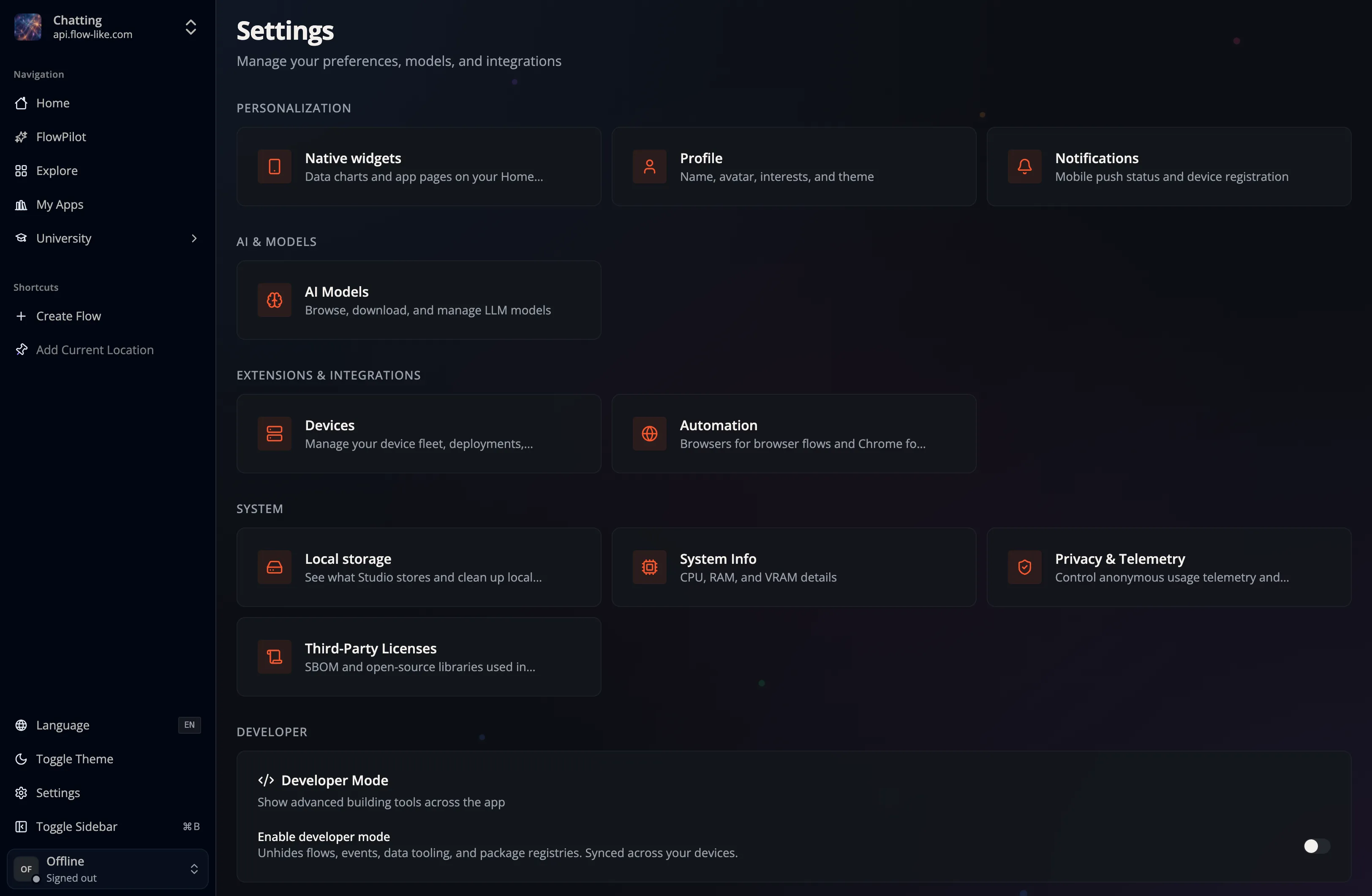
Toggle Enable developer mode:

Synced with your account
Section titled “Synced with your account”Developer Mode is stored on your Flow-Like account, so it follows you across devices. If you toggle it while offline or signed out, the change applies immediately on that device and is pushed to your account the next time you sign in.