Build your first Flow
Build a Flow that prints Hello Flow. This exercise uses two built-in nodes and
needs no AI model, API key, or external data.
Choose Desktop or Web
Section titled “Choose Desktop or Web”| Client | Before you start |
|---|---|
| Flow-Like Desktop | Install the app and choose a starter Profile. You can create an offline App without signing in. Model downloads can continue in the background. |
| Flow-Like Web | Sign in and use an online App. Web onboarding opens your workspace; it does not run Desktop’s Profile and model-download steps. Workflow execution needs an available server. |
In either client, enable Developer Mode in Settings so that Flows and the other building tools appear.
Create the App
Section titled “Create the App”- Open My Apps and choose Create Flow. An empty library offers Create Your First App instead.
- Set Project Name to
Hello Flow. - On Desktop, select Offline - Local only. On Web, keep Online - Sync with cloud.
- Select Create Project. The initial Flow opens in Studio.
The dialog creates an App, the project that holds your Flow and its related resources. Its Create Flow title and Create Project button refer to the same creation action. See the terminology map.
Connect two nodes
Section titled “Connect two nodes”- Right-click an empty part of the canvas, search for Simple Event, and add it. If the initial Flow already contains one, use that node.
- Right-click the canvas again, search for Print Info, and add it beside the event.
- Drag the Simple Event’s execution output to Input on Print Info.
- Set Print Info’s Message to the string
Hello Flowand turn on On Screen?. Keep the Message value unconnected so this literal is used.
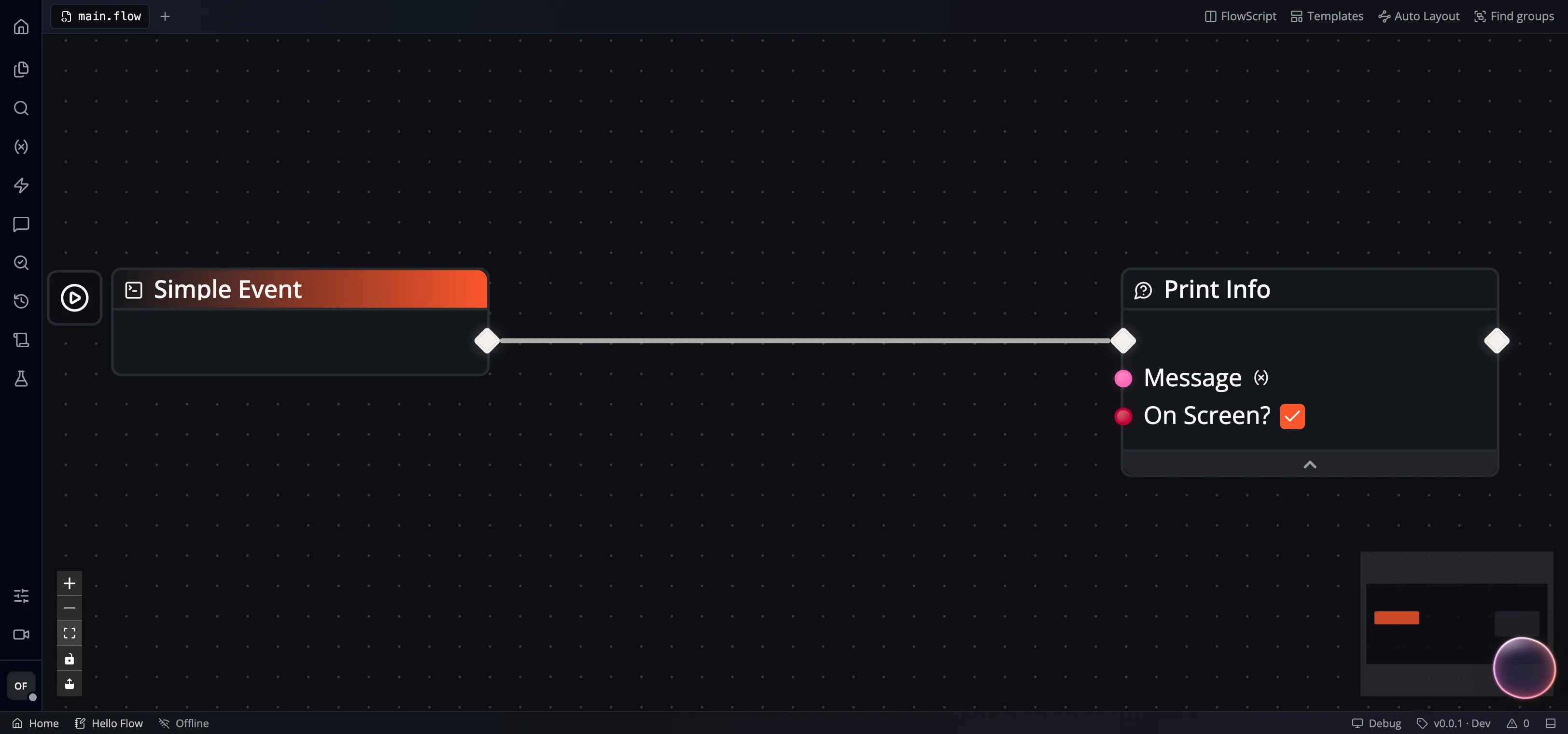
The Simple Event starts the run. Print Info records its Message at Info level and, with On Screen? enabled, also displays a notification. An execution wire controls which node runs next; the Message here is a fixed value.
Run and check the result
Section titled “Run and check the result”- Use the control beside the Simple Event: Execute locally (play icon) on Desktop, or Execute on server (cloud icon) on Web.
- Confirm any run dialog. This example has no event inputs to fill in.
- Look for the
Hello Flownotification. - Open Runs, select the new run, and inspect Logs. You should see an
Info entry with the message
Hello Flow, attributed to Print Info. - Change Message to
Hello againand run the event again. Select the newest run to seeHello again; the earlier run keeps its original log.
Continue from a working Flow
Section titled “Continue from a working Flow”For a longer guided lesson, read FlowBook’s incident-triage chapter. Docs covers current tasks and reference contracts; FlowBook develops the language and application model through connected chapters. Chapters marked Draft may change as the book develops.
For help, use Support or report a reproducible issue on GitHub.