
Create and publish Pages
Pages are full-screen interfaces built with Flow-Like’s A2UI component system. A Page belongs to a Flow, so its interface and workflow behavior stay together.
Use Pages for dashboards, forms, reports, tools, and other experiences that need more layout control than a Chat UI.
Enable Developer Mode to open the App’s Flows and Events workspaces. Your role must also allow editing the Flow and its Pages.
Create a Page
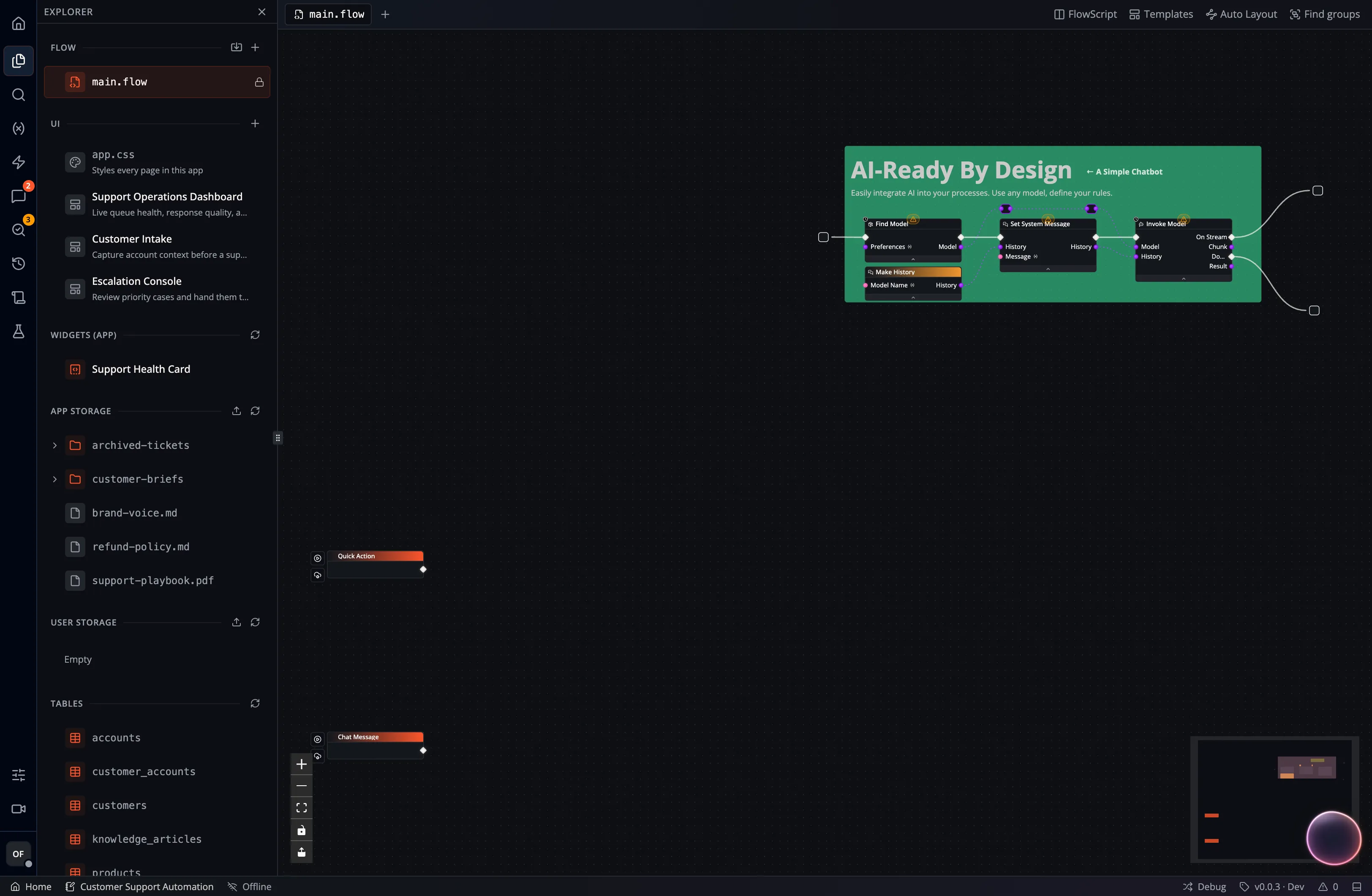
Section titled “Create a Page”- Open the Flow that will provide the Page’s behavior.
- Open Explorer and find the UI section.
- Select its Create Page (+) control. Enter Page Name and review the suggested route.
- Select Create, then select the new Page in the Explorer to open it in an editor tab. The Event route is configured separately when exposing it to users.
A Flow can own multiple Pages. Reopen them from Explorer → UI in that Flow. The Page opens in an editor tab alongside the graph. The App’s Events workspace manages the entry points that expose those Pages.
Page Builder
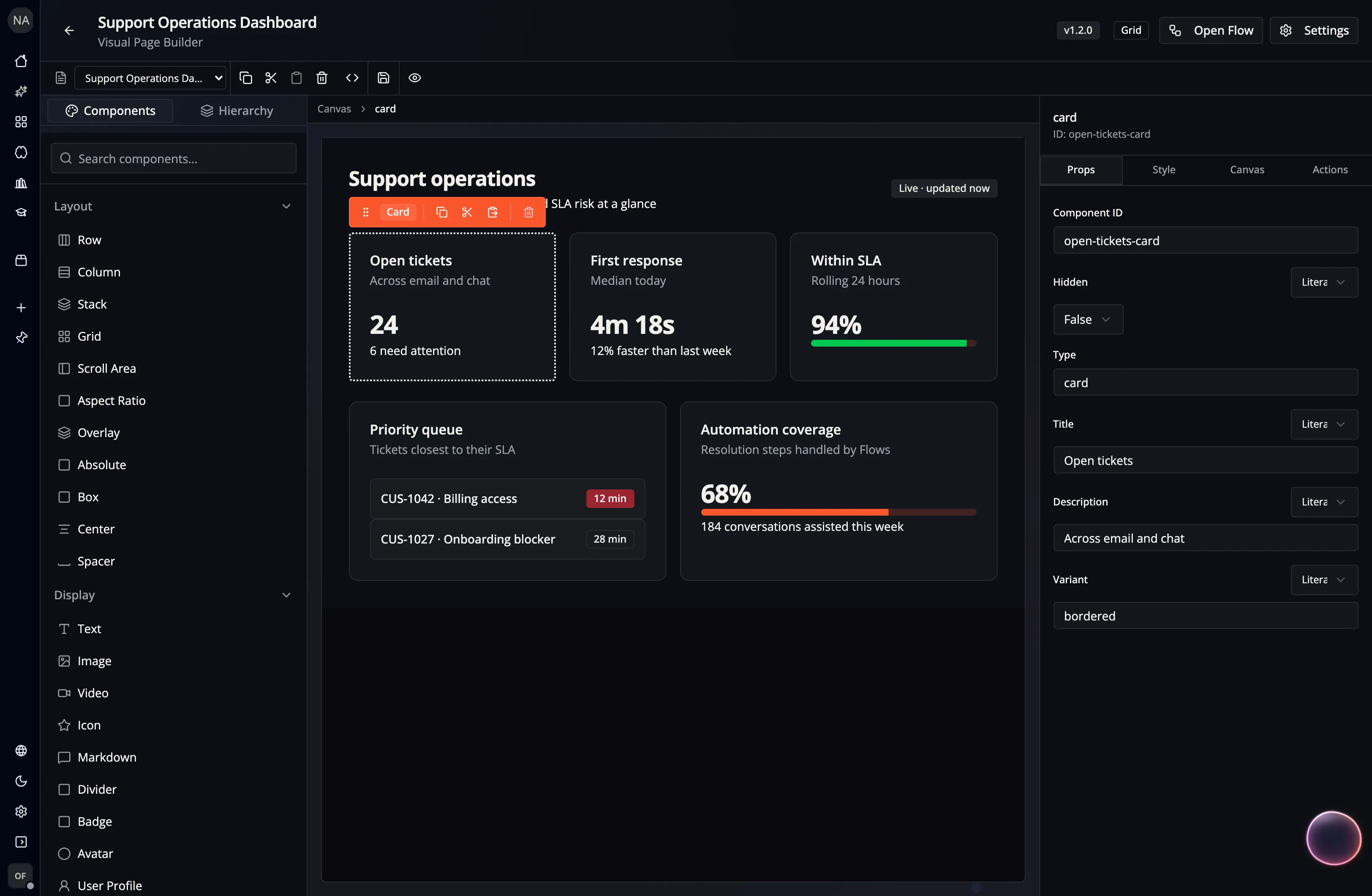
Section titled “Page Builder”The Page Builder is the same component-based editor used for Widgets:
- Components / Hierarchy: add components or inspect the current component tree.
- Canvas: arrange and preview the interface.
- Inspector: configure the selected component, including its content, style, data bindings, and actions.
The toolbar provides copy, cut, paste, and delete controls, plus Dev Mode for the underlying JSON, manual save, and Preview. Page changes are also saved automatically after you stop editing.
Select Settings in the Page header for Page-level configuration:
- General: Page name, description, ID, and version.
- Behavior: Flow events to run on load, unload, or at an interval. A cached Page can show its last rendered state while its load event refreshes.
- Layout: layout type, background, spacing, and custom canvas styling.
- SEO: browser and social metadata.
Components, data, and actions
Section titled “Components, data, and actions”A Page is a tree of typed A2UI components. Layout components such as rows, columns, and grids contain display or interactive components such as text, cards, tables, charts, inputs, and buttons. You can also place a reusable Widget on a Page.
Bound values let a component read from Page data instead of displaying only a
fixed literal. An interactive component triggers a selected Flow Event through
the fixed workflow_event action and its nodeId; navigation uses the
dedicated page or external-link actions. Page-level behavior can initialize or
refresh the surface by returning A2UI updates.
See the A2UI component reference for the full catalog and property definitions.
Publish a Page through an Event
Section titled “Publish a Page through an Event”To publish a Page for App users, configure an Event with that Page as its target. Give
the Event a unique path such as /support. That path becomes the Page’s
navigable route.
When creating a Flow version, Flow-Like also snapshots its owned Pages. Pin the Page-target Event to that version to keep using the released Page. The Page Builder continues to edit the latest Page.
Use the builder’s Preview mode and representative Flow data to test the Page before sharing the App. To publish a Page at a browser link, also configure Event hosting.