
Versioning
Flow-Like can save immutable versions of a Flow and its owned Pages while keeping a separate editable draft. Events and Templates can then refer to either the latest draft or a known version.
Version Format
Section titled “Version Format”Flow versions use three numeric parts:
major.minor.patch| Version Type | When to Use | Example |
|---|---|---|
| Major | Existing callers or behavior may need migration | 1.4.2 → 2.0.0 |
| Minor | Compatible behavior or capability is added | 1.4.2 → 1.5.0 |
| Patch | Compatible correction or small adjustment | 1.4.2 → 1.4.3 |
Flow-Like does not infer the semantic meaning of a change. Choose the bump that matches how the Flow is consumed.
Create a Flow version
Section titled “Create a Flow version”- Open the Flow in Studio.
- Open Version in the Studio status bar.
- Under Create Version, choose Major, Minor, or Patch.
The current draft is saved as an immutable snapshot and the editable draft moves to the next version number. Existing snapshots are not overwritten.
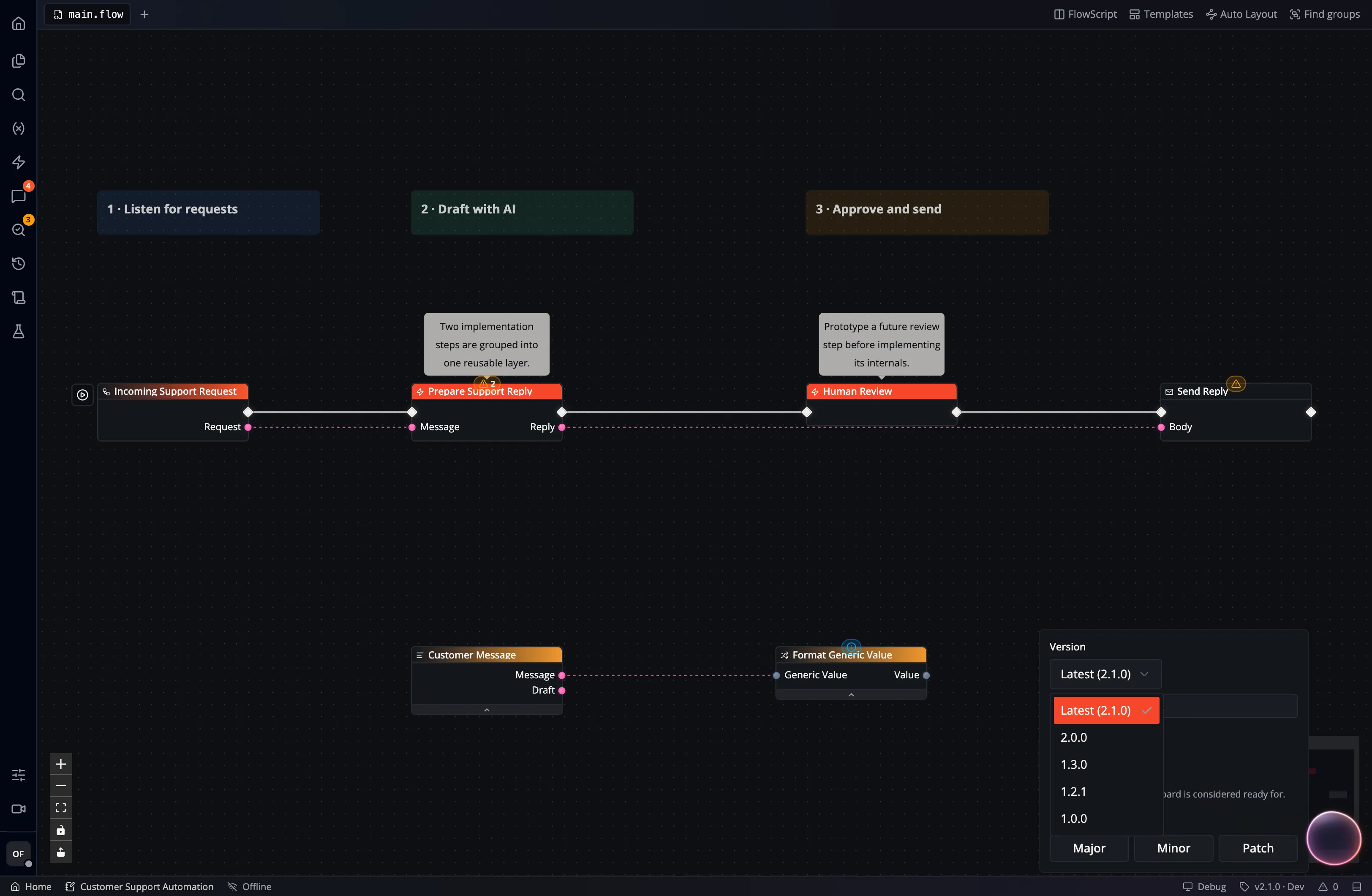
The Version selector distinguishes:
- Latest: the editable Flow draft and its current version number.
- A numbered version: a read-only snapshot.
Open a numbered version to inspect its graph or execution history. Return to Latest before editing.
What the snapshot includes
Section titled “What the snapshot includes”The snapshot records the Flow graph and the Pages owned by that Flow. An Event pinned to a version loads its Page from that same snapshot, so later Page edits do not change that pinned interface.
App styles, reusable Widget definitions, table data, files, and credentials are separate resources. A Flow version does not freeze them. Check their versions or current values when reproducing a release.
Studio’s Page editor tab opens the latest Page, even when the graph tab shows a numbered Flow version. Test the pinned Event to inspect the released Page.
Pin an Event
Section titled “Pin an Event”An Event can target Latest or a numbered Flow version:
| Event target | Behavior |
|---|---|
| Latest | Uses the current Flow draft when the Event runs |
| Pinned version | Uses that immutable snapshot until the Event is edited |
Pin production-facing Events when changes to the draft must not affect live behavior. Use Latest for development entry points where immediate changes are intentional.
To change the target, open the Event and edit Flow Version. Confirm that the selected event node still exists in the target version and test the Event with representative payloads.
Pages and actions
Section titled “Pages and actions”Page-target Events also expose a Flow Version selector. Data Studio ontology actions can likewise bind to a published Flow version so a governed action does not drift with an editable draft.
If you update a Flow used by one of these entry points:
- Create and test a new Flow version.
- Update the Event, Page target, or ontology action to the new version.
- Verify the complete interface or invocation path.
- Keep the previous version available until rollback is no longer required.
Flow Templates
Section titled “Flow Templates”A Flow Template snapshots either the latest draft or a selected Flow version. A Template has its own metadata and versions, but it does not replace versioning the source Flow.
Use a Template when you want a reusable Flow blueprint. Use a pinned Event when you want an App entry point to keep running a known implementation.
App version metadata
Section titled “App version metadata”An App also has a free-form Version field under Dashboard → Pricing & release. That value is release metadata for people browsing the App; editing it does not create a snapshot of the App, its Flows, storage, or Events.
Treat the App version as a label for a tested collection of Flow and interface versions, and record the corresponding changes in the App changelog.
For candidate testing, traffic splitting, and restoring an Event snapshot, use the Event release and rollback walkthrough. Event versions record Event configuration separately from Flow versions.
Roll back safely
Section titled “Roll back safely”If a pinned entry point needs to be rolled back:
- Re-select the previous tested Flow version on the Event or action.
- Keep debugging on Latest.
- Create a new patch version for the correction.
- Test and pin the corrected version.