
Customize your Home
Home brings your Apps, FlowPilot, workspace activity, and discovery widgets into one page. Choose Customize to add widgets, change their content, or arrange them for the active Profile. Web and desktop use the same editor.
Save a personal layout
Section titled “Save a personal layout”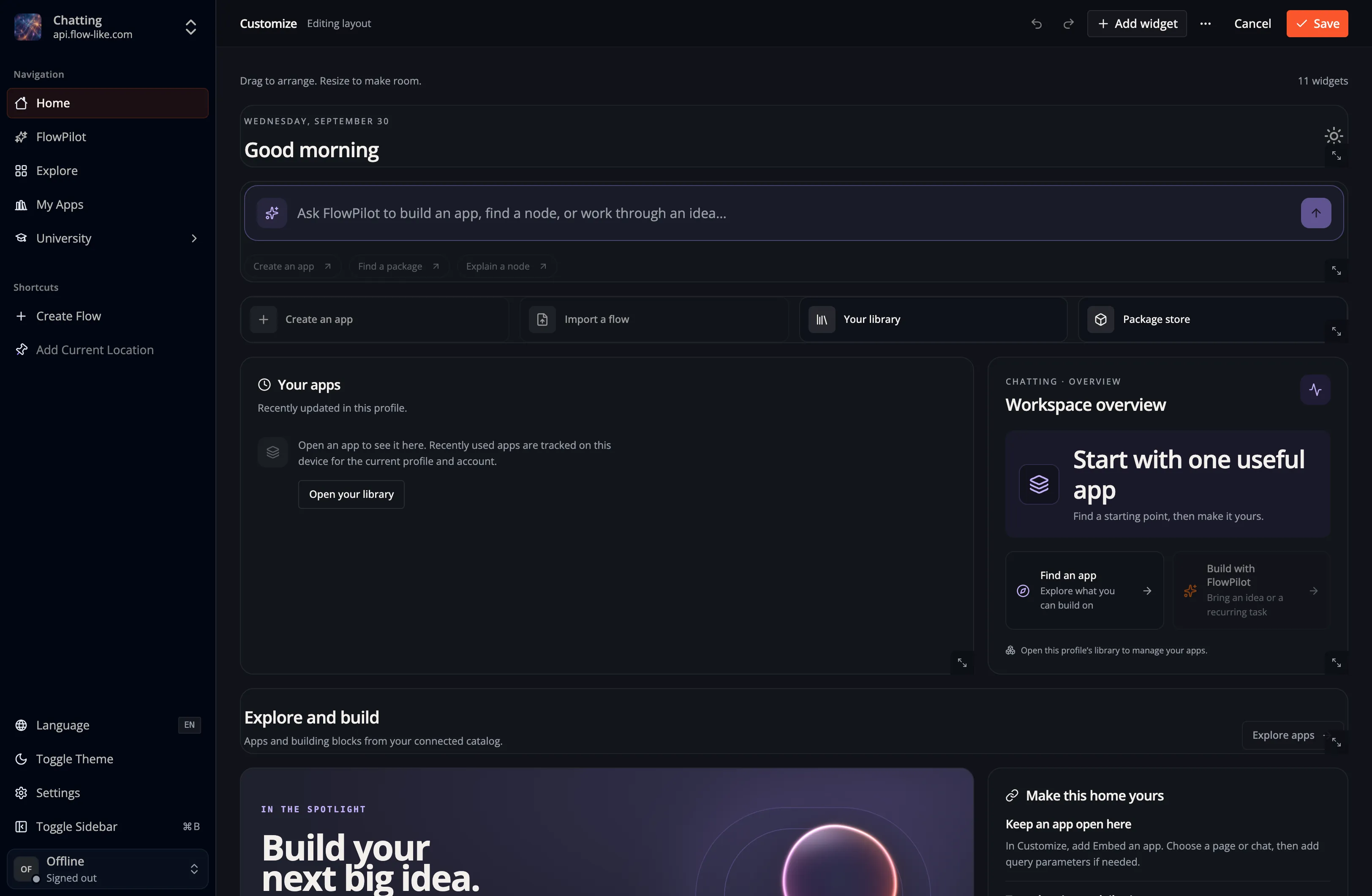
- Select the Profile whose Home you want to change.
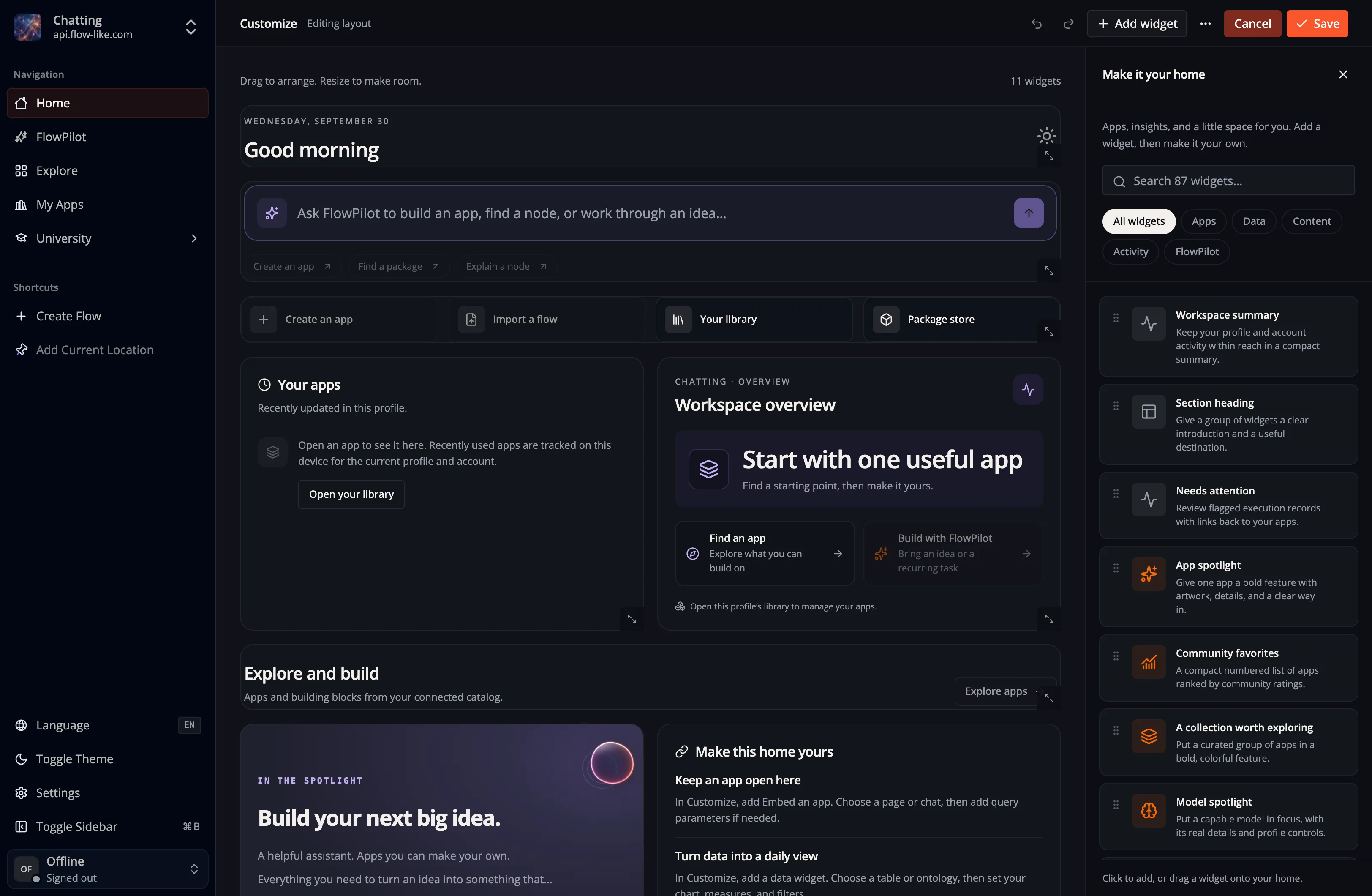
- Open Customize, then Add widget to choose a widget. Select an existing widget to edit its content, data source, size, or appearance.
- Drag widgets into position. With the keyboard, pick up a widget using its move handle, use the arrow keys to choose a position, and press Space to place it. Escape cancels the move or an active pointer resize.
- Choose Save to apply the layout. Cancel lets you discard unsaved changes. Undo and redo are available while editing.
Finish an active move or resize before saving. If a save fails, the editor retains the draft so you can retry.
The widget library groups available widgets by purpose. Use its search field or a category such as Apps, Data, or Content to find one to add.
Add an image
Section titled “Add an image”In Customize → Add widget → Content, choose Image and caption. In its settings, choose an Image source:
- URL: enter an HTTP(S) image URL or a path on the current site.
- App storage: choose an App, browse its shared storage folders, and select an image. Viewers need permission to read that App’s files.
Add an Image description for people using a screen reader. You can also add a caption in Content. Editorial stories and banners support the same image sources.
Storage images keep their App and file path in the layout. Home obtains a temporary download URL through the App’s storage API and refreshes it before it expires. Your browser caches the image according to the storage provider’s HTTP cache settings. If a storage image fails to load, check your connection and file permissions, then choose Try again.
Understand defaults
Section titled “Understand defaults”Home uses the first available layout in this order:
- Your saved personal layout for the active Profile.
- The published default assigned to that Profile.
- The installation’s published main default.
- The starter bundled with Flow-Like.
A personal layout takes precedence over later changes to published defaults. To return to inherited defaults, open Customize → Layout options → Reset to default, confirm the reset, then save. You can undo the reset before saving.
To start from the current bundled design instead, choose Use Flow-Like starter in the same menu. This loads an editable draft. It does not change your saved layout until you save, and it does not publish an installation-wide default. Administrators manage shared defaults separately; see Publish default Home layouts.
When you use an inherited layout and its published default cannot be loaded, Home uses its last available cached default or the bundled starter. A failure to load the Profile itself shows a retry action. Check that the intended Profile is active before retrying a save.
Size widgets for their content
Section titled “Size widgets for their content”Match row aligns a widget’s surface with its neighbors. Fit content keeps its natural height. Choose a row count or resize the widget when you need a fixed height. On narrow screens, widgets form a single column.
The widget’s surface controls its frame and accent. Collection card style controls how the Apps, models, or packages inside it are displayed. These are separate choices. For manual App collections, you can reorder and remove selected Apps; automatic collection filters do not override that manual selection.
Embedded Apps keep their own page navigation and query parameters. Their preview pauses while you edit Home. Account activity widgets report the available account execution records; an unavailable data source should be retried rather than interpreted as zero activity.
Customize appearance further
Section titled “Customize appearance further”For Tailwind classes, scoped CSS, animation, theme variables, and selectors, see Home widget styling. Start with the built-in surface and accent controls, then add custom styling where the layout needs it.